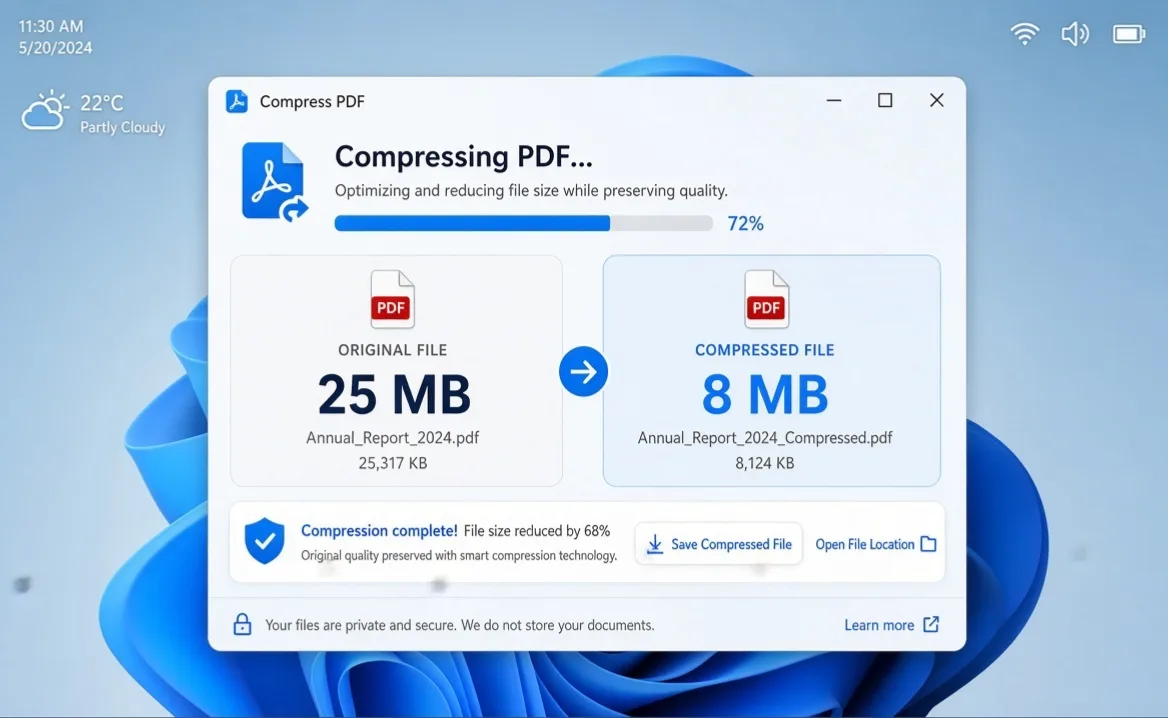
Large PDFs are a pain — hard to email, slow to upload, awkward to store. Whether it’s a work report, a scanned form, or a school assignment, shrinking the file usually makes life easier. The good news: Windows gives you several ways to do this without turning your document into a blurry mess.
Here’s how to compress a PDF properly, pick the right compression level, and fix it when a compressed file starts looking rough.
Why Bother Compressing a PDF
PDFs balloon in size fast when they’re full of high-res images, scanned pages, screenshots, or graphics. Compressing one helps with email attachments, faster uploads, saved storage, easier sharing, and staying under file-size limits some websites enforce.
A 20-page scanned document can easily run dozens of megabytes if every page is a high-res image — proper compression can knock that down significantly.
Method 1: Use an Online PDF Compressor
The simplest option for a one-off. Open a reputable compression site, upload your PDF, pick a compression level if offered, run it, download the result, and check the quality before you trust it.
Most services offer low, medium, and high compression. For a document with mostly text and a few images, medium is a solid starting point. Go stronger when the file’s huge, it’s mainly for on-screen viewing, or image quality isn’t critical. Stay lighter when it contains photographs, needs to be printed, or has detailed graphics you don’t want degraded.
One thing worth flagging: don’t upload confidential documents to a service you haven’t checked out first. For sensitive business files, personal records, or financial documents, an offline method is the safer call.
Method 2: Compress the Images Before Creating the PDF
Sometimes the PDF isn’t really the problem — the images inside it are. If you’re building the PDF from large photos or screenshots, shrinking those first gives you much more control than compressing the finished file over and over.
A document meant only for on-screen viewing rarely needs print-resolution photos. Workflow: resize/compress your images first, build the PDF, then check the final size.
Method 3: Recreate the PDF With Optimized Images
If you still have the original editable document — a Word file, say — you can fix the size at the source. Open it, swap out oversized images for optimized versions, remove anything unused, save, and export to PDF again. This works especially well for reports, presentations, and resumes you still have the source files for.
Method 4: Use Dedicated PDF Software
For more control than a basic online tool offers, dedicated PDF software can downsample images, adjust quality settings, strip unnecessary metadata, optimize fonts, remove embedded objects, cut duplicated resources, and optimize specifically for web viewing. Worth it if you’re working with large PDFs regularly — most of these tools bundle in other editing and document-management features too.
Keeping It From Looking Blurry
The real challenge is balancing size against quality. Compress too aggressively and images get pixelated, text loses its sharpness. A few ways to avoid that:
Don’t max out image compression right away. Images usually account for most of a PDF’s size — start moderate and compare before going stronger.
Keep text as actual text rather than flattening every page into a high-res image. Text-based PDFs are smaller and stay searchable.
Match resolution to purpose. On-screen documents don’t need print-quality images; anything headed for the printer should keep a higher setting.
Always check the result before deleting your original — text readability, images, layout, hyperlinks, tables, fonts, and any signatures or important graphics.
How Much Can You Actually Shrink a PDF?
Depends entirely on what’s inside. A text-heavy PDF is already fairly small, so compression won’t do much. A PDF stuffed with high-res photos has a lot more room to shrink — going from something like 25MB down to 8MB isn’t unusual. Results vary by document and method.
Still Too Large?
If the file’s still over your limit after compressing: push image compression harder, cut unnecessary pages, remove embedded attachments or objects, drop the image resolution further, recreate the PDF from the original source document, try dedicated optimization software, or split it into smaller files if that’s an option for whoever’s receiving it.
Try not to compress the same PDF over and over — each additional pass risks degrading image quality further.
PDF Compression vs. Zipping It
These solve different problems. PDF compression optimizes what’s actually inside the file. Zipping just wraps the existing PDF in a compressed archive — and for a PDF that’s already optimized, a ZIP usually barely shrinks it further. If a site specifically requires a PDF under a size limit, compressing the PDF itself is the right move, not zipping it.
FAQ
Can I compress a PDF on Windows for free?
Yes — free online tools and free software both cover this depending on what you need.
Will compressing a PDF hurt quality?
It can, depending on the settings. Moderate compression usually strikes a good balance between size and readability.
Why is my PDF so large in the first place?
Usually high-res images, scanned pages, embedded fonts, or screenshots.
Can I compress a PDF without installing anything?
Yes, online tools handle this right from your browser — just avoid uploading anything sensitive to a service you don’t trust.
What’s the best compression setting?
No universal answer — start moderate, check the result, and only go stronger if you actually need to.
Does compression delete anything from the document?
Normal compression shouldn’t remove pages or text, though some tools strip metadata or other extras. Always check the output afterward.
Bottom Line
Compressing a PDF on Windows doesn’t have to be complicated. An online compressor works fine for a quick job. If you’ve still got the source document, optimizing images before you export tends to give better results. For frequent PDF work, dedicated software gives you the most control.
The real goal isn’t the smallest possible file — it’s the smallest file that still looks right and works properly. Always open the compressed version and check the text, images, formatting, and anything important before you delete the original.
How to Tell If Your Email Has Been Hacked: 9 Warning Signs and What to Do
2 thoughts on “How to Compress a PDF on Windows Without Losing Quality”