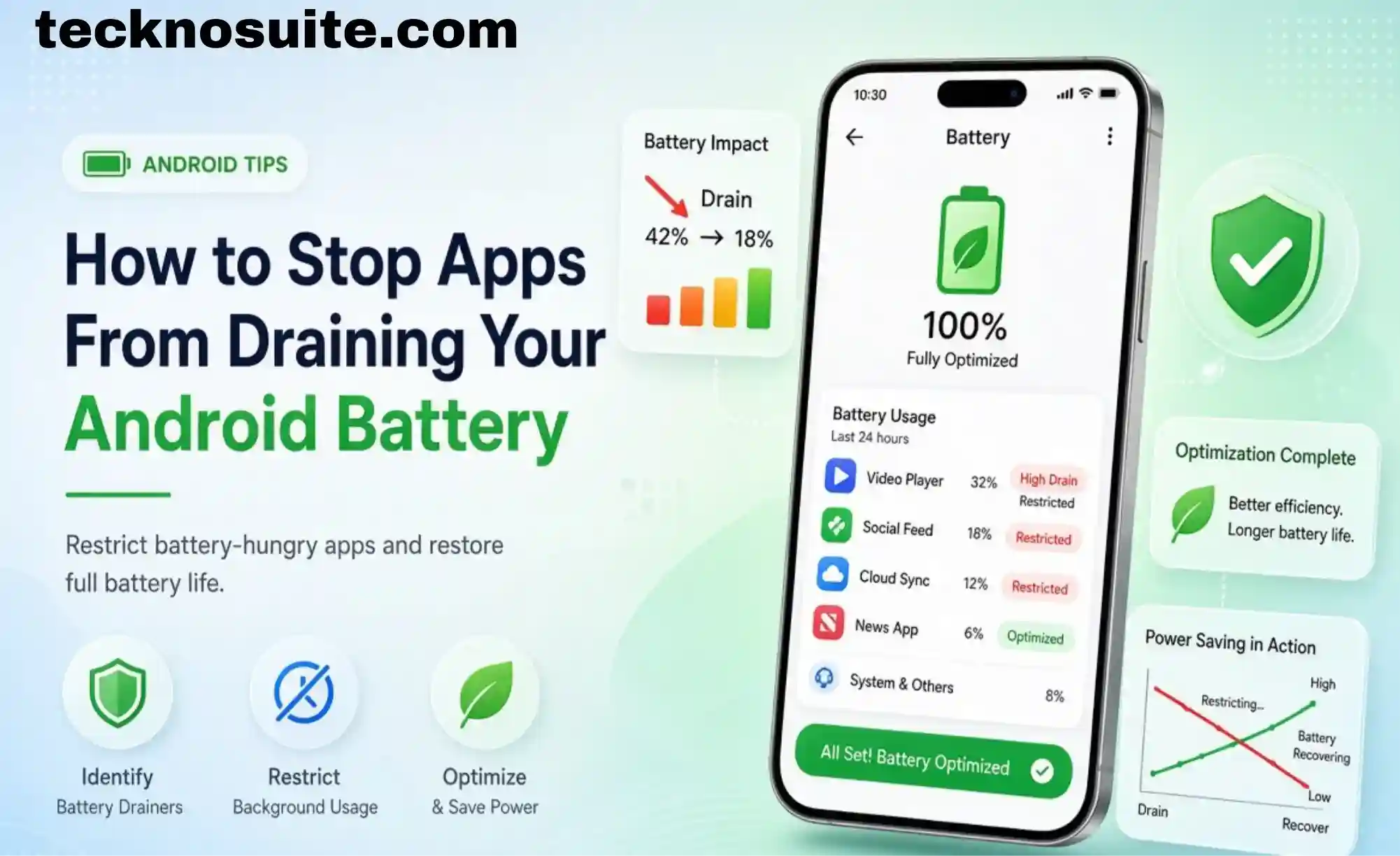
If your Android phone’s battery is emptying faster than it used to, the battery itself often isn’t the problem — an app running frequently in the background can be quietly draining power through location checks, notifications, mobile data, Bluetooth, and other background activity.
The good news: Android already gives you the tools to find the culprits and rein them in. Here’s how.
Why Apps Drain Battery in the First Place
An app can eat battery by running in the background, checking for new content constantly, using your location, pulling mobile data, sending frequent notifications, using your camera or mic, syncing continuously, uploading or downloading files, or keeping the screen active. Social media, streaming, navigation, gaming, and messaging apps tend to be the worst offenders simply because of what they do in the background.
High usage isn’t automatically a red flag though — some apps legitimately need more power. The real goal is spotting unnecessary battery usage, not punishing every app that uses some.
1. Check Which Apps Are Actually Using the Most Battery
Before changing anything, find out what’s actually responsible. Check Settings → Battery → Battery Usage (menu wording varies a bit by phone and Android version) for a breakdown by app.
Look for apps you rarely use, ones still running when you’re not touching them, ones with unusually high usage, or ones whose usage has spiked recently. That’s your starting list.
2. Restrict Background Battery Usage
One of the most effective fixes: limit how much an app can do in the background. Check Settings → Apps → [App] → Battery for options like unrestricted, optimized, or restricted. If an app doesn’t need to be constantly active in the background, a more restrictive setting usually helps.
Be careful with messaging apps though — restricting something that needs timely notifications can delay messages or background updates. Weigh how important an app’s background activity actually is to you before locking it down.
3. Uninstall Apps You Don’t Use
If you haven’t opened something in months, there’s little reason to keep it — unused apps still eat storage, run background processes, send notifications, and auto-update. Go through your app list and remove what you genuinely don’t use. No need to nuke everything — just the dead weight.
4. Turn Off Unnecessary Location Access
Repeated location requests eat battery fast. Check which apps have access via Settings → Apps → [App] → Permissions → Location, and switch anything that doesn’t need constant access to a more limited option. A weather app might need location for local forecasts, but probably not around the clock.
5. Cut Back on Notifications
One notification barely registers, but hundreds of low-priority ones add up in background activity and screen wake-ups. Check Settings → Notifications → App Notifications and turn off anything that isn’t actually useful — promotional alerts and low-priority pings are usually the easiest to cut. Bonus: your phone gets a lot less distracting too.
6. Use Battery Saver When You Actually Need It
Android’s built-in Battery Saver (under Settings → Battery → Battery Saver) reduces background activity and limits certain features to stretch what’s left in the tank — genuinely useful when you’re running low and still need your phone for hours.
7. Don’t Overlook the Screen Itself
It’s easy to blame an app when the display is actually the biggest drain. High brightness, a long screen timeout, high refresh rate, and always-on display all add up. Lower your brightness when you can, shorten the timeout, and consider a lower refresh rate if battery life matters more to you than ultra-smooth scrolling.
8. Keep Apps and Android Updated
Developers regularly ship fixes for bugs that can cause unexpected battery drain. Check the Play Store for app updates and your phone’s system update settings — keeping things reasonably current helps avoid known battery and performance issues.
9. Don’t Bother Force-Closing Everything
Modern Android already manages background apps automatically — you don’t need to manually close everything, and doing so repeatedly can actually backfire since apps have to restart from scratch later. Focus your energy on apps genuinely showing high battery usage instead of a blanket close-everything habit.
10. Check What’s Constantly Syncing
Email, cloud storage, social media, photo backup, and calendar apps often sync continuously in the background. If you don’t need instant updates from something, reducing its sync frequency can meaningfully cut background activity — you probably don’t need email pinging your phone every 30 seconds if you check it manually anyway.
11. Turn Off Wireless Features You’re Not Using
Bluetooth, mobile hotspot, Wi-Fi scanning, location, and nearby-device scanning all sip battery even when idle. No need to disable everything permanently — just turn off what you’re not actively using at the moment.
12. Be Skeptical of “Battery Booster” Apps
Plenty of third-party apps promise dramatic battery improvements. Be cautious — Android already has solid built-in battery management, and adding another app doesn’t automatically extend your battery life. Some “optimizer” apps actually run continuously themselves, which defeats the purpose. Check what your phone’s built-in settings can already do before installing anything extra.
Tracking Down a Specific Problem App
If drain suddenly got worse, think about what changed recently: did you install something new? Did an app just update? Did you change a location or sync setting? Is one specific app showing an unusual spike in the battery usage screen?
If the timing lines up with a specific app, that’s your prime suspect — try restricting its background activity first, or uninstall it temporarily and see if things improve.
What If It’s Still Draining Fast?
If you’ve restricted background activity and it’s still not enough, the cause might not be an app at all. Consider an aging battery, poor cellular signal, high screen brightness, heavy gaming, GPS navigation, extreme temperatures, software issues, or high-performance settings. Check your Battery Usage page again to see whether anything specific is actually responsible before assuming it’s hardware.
Quick Checklist
- Check Battery Usage
- Identify high-usage apps
- Restrict unnecessary background activity
- Uninstall unused apps
- Review location permissions
- Disable unnecessary notifications
- Use Battery Saver when needed
- Reduce screen brightness
- Shorten screen timeout
- Update Android and apps
- Review background syncing
- Turn off unused wireless features
No need to flip every setting at once — start with the biggest offenders and work down the list gradually.
FAQ
How do I find which apps are draining my battery?
Settings → Battery → Battery Usage (menu varies by phone/Android version) shows a breakdown by app.
Should I force close apps to save battery?
Usually not necessary — Android manages background apps on its own. Focus on genuinely high-usage apps instead.
Does Battery Saver actually help?
Yes — it limits background activity and other power-hungry behavior, though the exact features vary by device.
Does turning off location save battery?
It can, especially for apps checking location frequently — just weigh that against losing navigation, weather accuracy, or device-finding features.
Why is my battery draining overnight?
Background apps, syncing, notifications, weak signal, wireless features left on, or battery health could all be behind it — check Battery Usage for anything unusual.
Should I just uninstall battery-hungry apps?
Not automatically — some apps genuinely need the power for what they do. Uninstall if the usage is excessive relative to how often you actually use it, or if you don’t need it anymore.
Bottom Line
Don’t jump straight to assuming you need a new phone or battery. Start with Battery Usage to see what’s actually responsible, then work through background activity, location permissions, notifications, syncing, and unused apps — using Battery Saver when you need a boost. The key is making changes based on what’s actually draining your battery, not disabling every feature on the phone just in case.