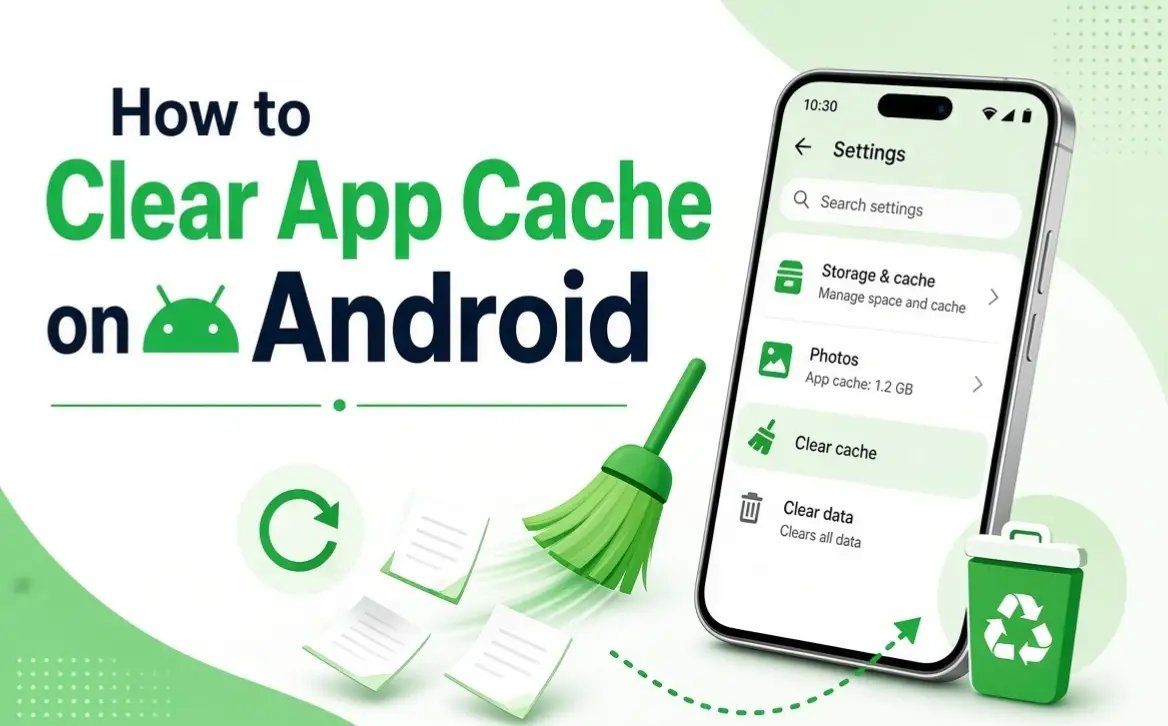
If an app on your Android phone is eating storage, running slow, or acting up, clearing its cache can often help. A lot of people hesitate to do this though — worried it’ll wipe photos, messages, or login info.
Good news: clearing cache is generally a very different thing from clearing an app’s storage or data. Cache is mostly temporary files an app can rebuild on its own. Here’s exactly what it is, how to clear it safely, and why the distinction between Clear Cache and Clear Storage actually matters.
What App Cache Actually Is
Cache is temporary data an app stores to load things faster or avoid redoing work — images, thumbnails, web content, and other frequently accessed bits. It builds up over time, especially in apps you use a lot. Clearing the unnecessary parts can free up some space and sometimes fixes app problems along the way.
Does Clearing Cache Delete Your Data?
In most cases, no — clearing an app’s cache doesn’t touch your photos stored elsewhere, your contacts, downloaded documents, your account itself, or conversations stored by a service. That said, exact behavior can vary by app and device, which is exactly why understanding the difference between Clear Cache and Clear Storage/Data matters.
Clear Cache vs. Clear Storage — Know the Difference
This is the single most important thing to understand before you tap anything.
Clear Cache removes temporary files only. The app stays installed, your main stored info stays intact, and it’ll simply rebuild some cache as you use it again.
Clear Storage or Clear Data is a much bigger deal — it can reset the app to a fresh state, wipe locally stored settings or account sessions, and you may need to sign back in afterward.
Simple rule: just want to clear temp files? Choose Clear Cache. Considering Clear Storage or Clear Data? Make sure you actually know what the app stores locally first.
How to Clear App Cache
Steps vary a bit by phone, but the general flow is the same:
- Open Settings.
- Go to Apps (sometimes “Apps & notifications” depending on version/manufacturer).
- Find the app — use search if you’ve got a lot installed.
- Open Storage (or “Storage & cache”).
- Tap Clear Cache.
On a Samsung Galaxy
Samsung’s One UI uses a similar path: Settings → Apps → [App] → Storage → Clear Cache. Just make sure you’re tapping Clear Cache and not Clear Data. If you’re troubleshooting something specific, reopen the app afterward and check if the issue’s actually fixed.
On a Google Pixel
Settings → Apps → See all apps → [App] → Storage & cache → Clear cache. Same rule applies — avoid Clear storage unless you’re deliberately resetting the app.
When You Should Actually Clear Cache
You don’t need to do this constantly — Android manages cache reasonably well on its own, and apps just rebuild what you clear anyway. Worth doing when:
An app’s running slow — clearing temp data occasionally helps.
An app’s showing outdated or wrong content — stale cache can cause display glitches.
An app keeps crashing — clearing cache is a reasonable first troubleshooting step.
An app’s eating too much storage — clearing a bloated cache can free up meaningful space temporarily.
Should You Do This on a Schedule?
Generally no. Android and individual apps are built to use cached data for performance — clear it constantly and you’re just making apps rebuild the same files over and over for no real benefit. Better to clear it when there’s an actual reason: an app misbehaving, an unusually large cache, active troubleshooting, or needing a bit of storage back right now.
Which Apps Tend to Have Big Caches
Anything that handles a lot of images, video, or web content builds up cache fastest — browsers, social media, video apps, music apps, shopping apps, and streaming services are the usual suspects. That doesn’t mean clear everything routinely — check the storage breakdown first and target whatever’s actually using significant space.
What Happens Right After You Clear It
Don’t be surprised if things load a little slower the first time you reopen the app — it’s just rebuilding the temp files it needs. Totally normal, and it evens out as you keep using the app.
Does This Free Up Storage Permanently?
Not really — you get an immediate bump, but the app will create new cache again as you use it. Think of cache as temporary working data, not permanent storage. If your phone’s consistently running low on space, cache probably isn’t your real problem — look at large videos, photos, downloads, games, unused apps, and offline content instead. Those usually have a much bigger footprint.
Can Clearing Cache Fix App Problems?
Sometimes — good for slow loading, stale content, minor glitches, and odd behavior. Not a fix for everything though. If it doesn’t help, try restarting your phone, updating the app, checking for an Android system update, reviewing app permissions, reinstalling the app, or reaching out to the developer if the problem persists.
Before You Tap Clear Data
If an app offers Clear Storage or Clear Data, stop and check what you’d actually be losing: is your account synced elsewhere? Are important files backed up? Will settings reset? Do you actually remember your login? Does the app store offline content locally that you’d have to redownload? Clearing data is a much bigger disruption than clearing cache — worth being sure first.
A Simple, Safe Routine
- Check how much storage the app’s actually using.
- Open its storage settings.
- Select Clear Cache — not Clear Data.
- Reopen the app.
- Check whether the problem’s actually resolved.
If it’s still not fixed, move on to other troubleshooting rather than clearing cache over and over hoping something changes.
Common Mistakes
Tapping Clear Data instead of Clear Cache. Read the button carefully — the consequences are very different.
Clearing every app’s cache routinely. Usually unnecessary — only do it when there’s an actual reason.
Expecting a massive storage boost. Cache often isn’t your biggest storage hog — check large files, videos, and apps too if you’re actually tight on space.
Wiping app data just because the number looks big. Some apps store genuinely important info locally — don’t clear it on a whim.
FAQ
Does clearing cache delete my photos?
No, not photos stored elsewhere on your phone — but always check what a specific app stores before clearing anything.
Will clearing cache log me out?
Generally not — that’s more a risk with Clear Storage or Clear Data, so avoid those unless you know exactly what you’re giving up.
How often should I clear app cache?
No fixed schedule needed — do it when an app’s having a problem or its cache has grown unusually large.
Does clearing cache make my phone faster overall?
It can help a specific misbehaving app, but it’s not a guaranteed general speed fix.
What’s the actual difference between Clear Cache and Clear Data?
Clear Cache removes temp files only. Clear Data/Storage resets the app and can wipe locally stored info, settings, or your login session.
Why does cache come back after I clear it?
Because apps rebuild it naturally as you use them — that’s expected and not a problem.
Bottom Line
Clearing app cache is a useful, low-risk troubleshooting step and a decent way to temporarily reclaim some storage — as long as you stick to Clear Cache and steer clear of Clear Storage/Data unless you actually understand what you’d be losing. And if your phone’s constantly full, don’t fixate on cache alone — your biggest apps, videos, photos, downloads, and offline content are usually the real culprits worth checking first.