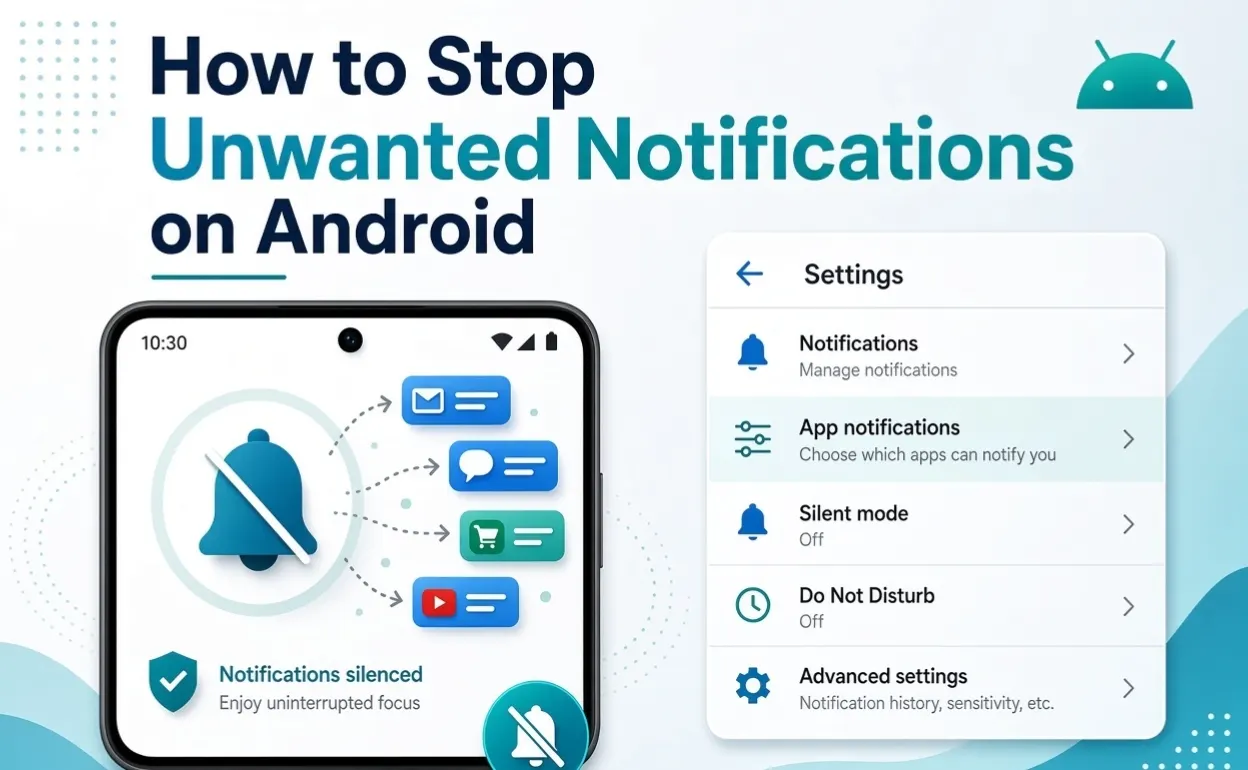
A constantly buzzing phone gets old fast. Shopping apps, games, social media, websites — they all want a piece of your notification panel, and not all of it’s worth keeping. Messages, calls, security alerts, and reminders matter; the rest is often just noise.
The good news: Android lets you cut the noise without going nuclear and disabling everything. Here’s how.
Why You’re Getting So Many Notifications
Usually a mix of promotional alerts, social media activity, shopping offers, game pings, news alerts, website notifications, email, app reminders, and background services. Some are from apps you genuinely wanted; others sneak in from a website you accidentally gave permission to at some point. First step: figure out exactly who’s sending what.
1. Check Where the Notification Actually Came From
Don’t just swipe it away — press and hold it. Android usually shows options tied to that specific app or source. This matters because it lets you shut down one app’s alerts without touching anything else.
2. Turn Off Notifications for One Specific App
Go to Settings → Notifications → App notifications, find the offender, and turn its notifications off. But you don’t have to go all-or-nothing — many Android phones let you control individual categories within an app, like Promotions, Messages, Updates, Reminders, and Downloads. Turn off what you don’t want while keeping the useful stuff on.
3. Use Notification Categories for Finer Control
This is the real trick for keeping what matters. A shopping app might send order updates, delivery notices, sales, and promo offers separately — you can keep delivery updates and kill the sales spam specifically. Check the app’s notification settings for these categories if your device supports them; it beats an all-or-nothing toggle.
4. Stop Promotional Notifications
Shopping, food delivery, travel, and entertainment apps love sending marketing alerts. Check the app’s own settings first — look for Notifications → Offers/Promotions/Marketing — and turn those off while keeping anything actually useful. No separate controls in the app? Manage it through Android’s notification settings instead.
5. Stop Website Notifications in Chrome
Not everything comes from an installed app — websites can send notifications too, if you gave permission at some point (often accidentally clicking “Allow” on a popup). Check Chrome’s notification permissions and revoke access for sites you don’t recognize or don’t want alerts from anymore.
Be extra careful with suspicious ones. A notification claiming your phone has a virus, that you’ve won a prize, or demanding you install something urgently is a red flag — don’t tap it. These are often attempts to get you onto a malicious site or into downloading something you shouldn’t.
6. Manage Lock Screen Notifications
Under Settings → Notifications → Notifications on lock screen, many phones let you show everything, hide sensitive content, or hide notifications entirely. Hiding content is a nice middle ground — you still know something arrived without message previews showing on a locked screen.
7. Turn Off Pop-Up / Floating Notifications
Some apps use pop-ups, floating bubbles, or heads-up alerts that interrupt whatever you’re doing — annoying mid-video or mid-game. Check the specific app’s notification settings for these options and turn off what’s bothering you.
8. Manage Sounds and Vibration Separately
Don’t want to lose a notification entirely, just want it quieter? Many apps let you set a category to silent — it still shows up in your panel, just without the sound or buzz. Handy for stuff you’d rather check manually than get pinged about.
9. Turn Off Game Notifications
Events, rewards, offers, daily bonuses, new levels — games love pushing all of it. If you don’t need the reminders, open the game’s notification settings and turn them off. The game stays installed; it just stops interrupting you.
10. Check Notification History
If your phone has this feature (Settings → Notifications → Notification history, location varies), it’s a good way to spot notifications you accidentally dismissed, or discover an app that’s been sending stuff you never noticed. Once you spot a repeat offender, go adjust its settings directly.
11. Use Do Not Disturb for Quiet Stretches
Rather than reconfiguring every app, Do Not Disturb gives you temporary relief — meetings, sleep, work, studying, movies, travel, whatever needs quiet. Most phones let you customize which people or apps can still get through if needed. Good for a defined block of time without permanently changing settings.
12. Uninstall Apps You Don’t Actually Use
If something keeps sending notifications and you never open it anyway, just remove it — frees up storage, background resources, and battery too. Make sure there’s nothing important stored only in that app first. If you might need it again later, disabling its notifications is a lighter-touch alternative to full removal.
13. Think Before Granting Notification Permission
When a new app asks to send notifications, actually consider whether you want that — you don’t owe every app the right to interrupt you. Only say yes when notifications genuinely add value.
Handling Spam or Suspicious Notifications
Watch for anything claiming a serious device problem, an unexpected prize, a request for sensitive info, pressure to install something unfamiliar, urgent language pushing you to act fast, or alerts from websites you don’t recognize. Don’t interact — instead, track down the source and revoke its notification permission. If suspicious notifications started around the same time you installed something unfamiliar, check your app list and remove anything you don’t recognize.
On a Samsung Galaxy
Samsung’s One UI uses similar menu logic: Settings → Notifications → App notifications, then select an app for its settings, categories, pop-ups, and sound options. Exact wording shifts a bit between One UI versions, so it may look slightly different on your phone.
On a Google Pixel
Similar path: Settings → Notifications → App notifications, select an app to manage it, and check notification history or lock-screen options where available.
Should You Just Turn Off Everything?
Not really necessary. Plenty of notifications genuinely matter — messages, missed calls, calendar reminders, security and banking alerts, delivery updates, authentication codes. The goal is trimming the unnecessary stuff, not going silent entirely. Keep what’s useful, cut what isn’t.
Common Mistakes
Approving notification permission for every app by default. Not every app needs to interrupt you — think it through when installing or setting up something new.
Tapping suspicious notifications. Virus warnings or urgent unverified demands are classic scam tactics — don’t engage without verifying first.
Blocking an app entirely when you only wanted to cut one category. Check whether it supports individual notification categories before nuking everything.
Forgetting about website notifications. If unwanted alerts persist after cleaning up your apps, check your browser’s website permissions next.
Quick Cleanup Checklist
- Identify the app or website sending the notification
- Open Android’s notification settings
- Select the relevant app
- Turn off unnecessary notification categories
- Disable promotional notifications where possible
- Review browser website permissions
- Check notification history if available
- Remove apps you no longer use
- Use Do Not Disturb when you need uninterrupted time
No need to do all of these — start with whatever’s sending the most annoying alerts and work from there.
FAQ
How do I stop unwanted notifications on Android?
Settings → Notifications → App notifications, find the app, turn off what you don’t need — full notifications or specific categories.
How do I stop spam notifications from websites?
Check your browser’s notification permissions and remove access for sites you don’t recognize or want alerts from anymore.
Can I block just one app’s notifications?
Yes — Android generally lets you manage each app individually without touching the rest.
How do I stop promotional notifications specifically?
Check the app’s own notification settings for categories like promotions, offers, or marketing, or manage it through Android’s notification settings if the app doesn’t offer that split.
Why am I getting notifications from a website I don’t remember visiting?
It probably got notification permission at some point through your browser — check and remove access for anything unwanted.
Should I disable all notifications to save battery?
Not necessary — trim unnecessary alerts and background activity instead of going all-or-nothing.
Bottom Line
You don’t have to live with a phone that never stops buzzing. Identify what’s sending the noise, use Android’s notification controls to cut what’s unnecessary, and keep what actually matters. Notification categories, browser permission checks, lock-screen controls, and Do Not Disturb all give you finer control than a blunt on/off switch. And always be cautious with suspicious notifications — verify before tapping anything claiming urgency, a virus, or a prize.