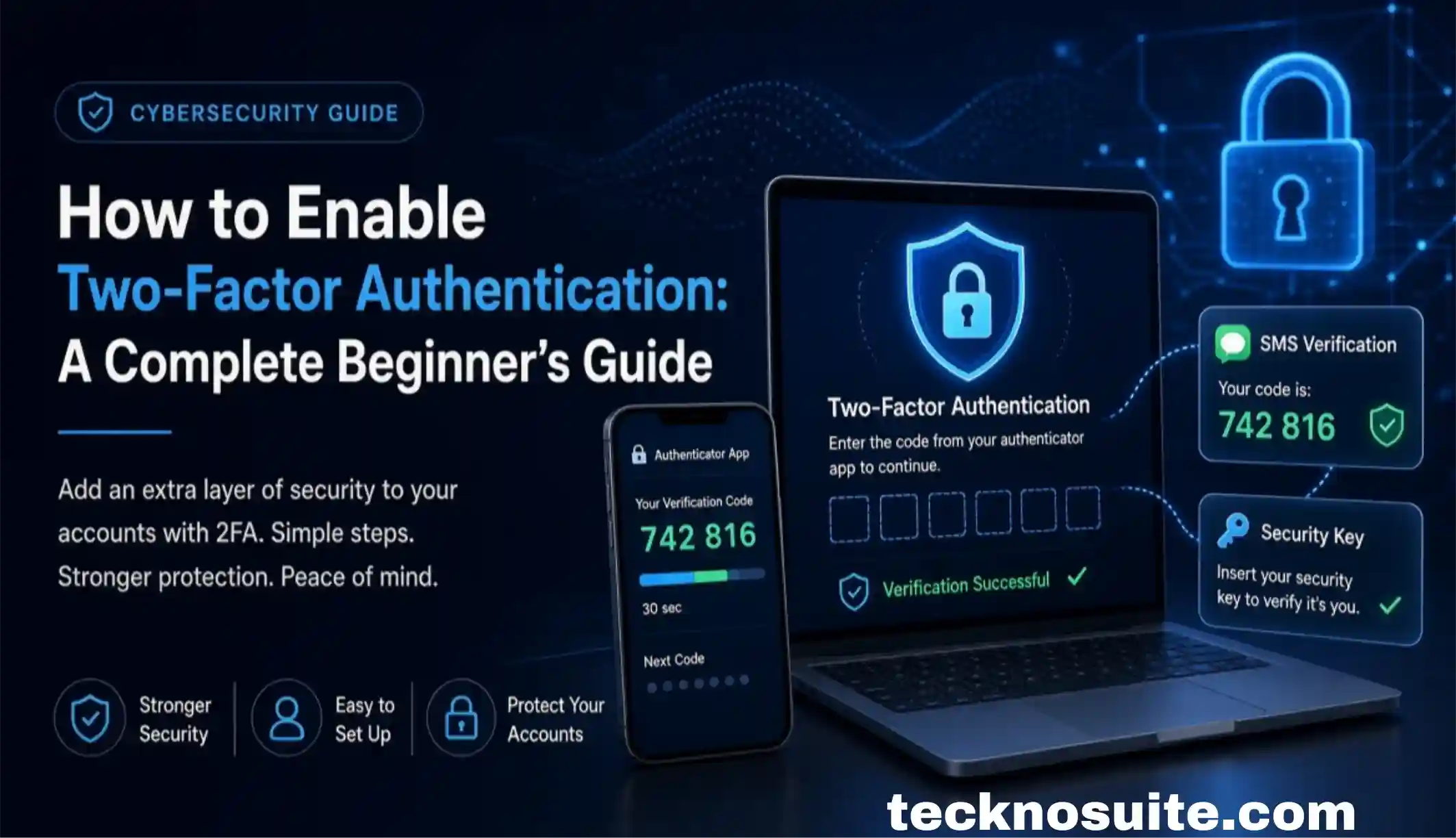
Passwords alone don’t cut it anymore. Even a strong one can leak through a phishing attack, a data breach, malware, or just accidentally getting shared somewhere it shouldn’t. That’s what two-factor authentication (2FA) is for — an extra step at login that doesn’t rely on your password being the only thing standing between an attacker and your account.
Here’s what 2FA actually is, how it works, how to turn it on, and which method is worth using.
What Two-Factor Authentication Actually Is
It’s a security feature requiring two different types of proof before you get into an account. Normally you sign in with just username + password. With 2FA on, it becomes username + password + verification.
That second step is what protects you if your password ever leaks — an attacker might know it, but without your authentication method, they’re still locked out.
How It Actually Works
2FA generally combines two different categories of proof:
Something you know — your password or PIN.
Something you have — your phone, an authenticator app, a security key, or another trusted device. Some systems also accept biometrics like a fingerprint or face scan. The exact options depend on the service.
Why Bother Turning It On
Your password is only one layer. If it leaks through a phishing site or a breach, 2FA is the barrier that stops it from being enough on its own. It matters most for accounts holding sensitive info: email, banking, cloud storage, social media, shopping, work accounts, and password managers.
Your primary email deserves extra attention — it’s often the account used to reset passwords everywhere else, which makes it the single most valuable target.
How to Turn On 2FA (General Steps)
The exact process varies by service, but the shape is usually the same:
- Open your account settings and look for a section called Security, Privacy & Security, Login & Security, or Sign-in options.
- Find the 2FA option — it might be labeled Two-factor authentication, 2FA, Two-step verification, Multi-factor authentication, or MFA.
- Pick a method — authenticator apps, text messages, security keys, passkeys, backup codes, or push notifications are common choices. Go with the strongest one available for your situation.
- Complete setup — for an authenticator app, you’ll usually scan a QR code, then enter the temporary code it generates to confirm.
- Save your backup codes somewhere safe — most services give these to you when you activate 2FA, and they’re your lifeline if you lose your phone or main authentication method. Never post them anywhere public, and never hand them to someone who asks for them.
Which 2FA Method Is Actually Best?
Authenticator apps generate temporary codes that refresh regularly and don’t depend on receiving a text message — generally the better choice over SMS when a service supports it.
SMS verification sends a code to your phone. Better than a password alone, but weaker than the alternatives — phone numbers can be targeted through SIM-related attacks. Use it if it’s your only option, but switch to something stronger if one’s available.
Security keys are physical devices built specifically for authentication and offer strong protection against many phishing attempts. Worth it for accounts you really want locked down.
Passkeys are the newer approach, cutting down on password dependence entirely — often letting you sign in with your device’s biometrics or PIN instead.
Enabling 2FA on a Google Account
Google accounts often hold a lot — email, photos, files, recovery options for other services. To lock it down: sign in, open your account’s security settings, find two-step verification or additional sign-in security, follow the setup, add a supported method, and save your recovery info and backup codes somewhere safe.
Always get there through the official Google site or app — never through an unexpected “security alert” link in an email.
Enabling 2FA on Social Media
Most major platforms follow a similar pattern: open account settings, go to Security or Login settings, find two-factor authentication, pick your method, follow the verification steps, and save your recovery codes. Worth doing on your main accounts especially — attackers often specifically target profiles with a large following or a lot of personal info attached.
What Happens If You Lose Your Phone?
This is worth thinking through before you turn 2FA on, not after you’ve lost the phone. Save your backup codes somewhere safe, add a recovery method where the service offers one, keep your authenticator app backed up if it supports that, and add a second trusted authentication method if you can. Don’t wait for the emergency to think about recovery.
Is 2FA Completely Hack-Proof?
No — nothing is. 2FA meaningfully raises the bar, but attackers still try phishing, social engineering, malware, fake login pages, and account-recovery exploits. Some phishing attacks specifically try to trick you into handing over both your password and your authentication code at once. Always check the actual website address before typing in anything sensitive.
Common Mistakes
Reusing the same password everywhere. 2FA doesn’t replace good password habits — you still need unique passwords for important accounts.
Sharing verification codes. Never read a code out to someone who contacts you unexpectedly — legitimate support never needs you to do that.
Ignoring backup codes. They’re genuinely useful if you lose your normal authentication method — store them somewhere safe, not forgotten.
Sticking with SMS when something stronger is available. It’s better than nothing, but an authenticator app, security key, or passkey is usually a real upgrade if the service offers it.
Clicking security links from unexpected messages. A “your account has a problem” email is a classic phishing setup — go to the official site or app yourself instead of clicking through.
Which Accounts to Protect First
If you haven’t turned on 2FA anywhere yet, work through this roughly in order: primary email, financial accounts, password manager, cloud storage, work accounts, social media, shopping accounts, then everything else. Email tops the list because it’s usually the key that unlocks password resets everywhere else.
FAQ
Is two-factor authentication free?
Usually, yes — most services offer it as a standard free security feature, though available methods vary.
Is an authenticator app better than SMS?
Generally yes when both are available, though the right choice depends on the specific service and your situation.
Should I use 2FA on my email specifically?
Definitely — it’s one of the most important accounts to protect since it often controls password resets for everything else.
What if I lose my backup codes?
Check the account’s official recovery options — you can usually generate a fresh set once you’re signed in successfully.
Can hackers get around 2FA?
Sometimes, through phishing or account-recovery attacks — which is exactly why staying cautious about unexpected login requests and verification-code prompts still matters even with 2FA on.
Bottom Line
Two-factor authentication is one of the simplest upgrades you can make to your online security. Start with your primary email, financial accounts, password manager, and cloud storage. Where you have the choice, lean toward authenticator apps, security keys, or passkeys over plain SMS. And never, under any circumstances, hand your password, verification code, or backup codes to someone who unexpectedly asks for them. It takes a few minutes to set up and makes a real difference.