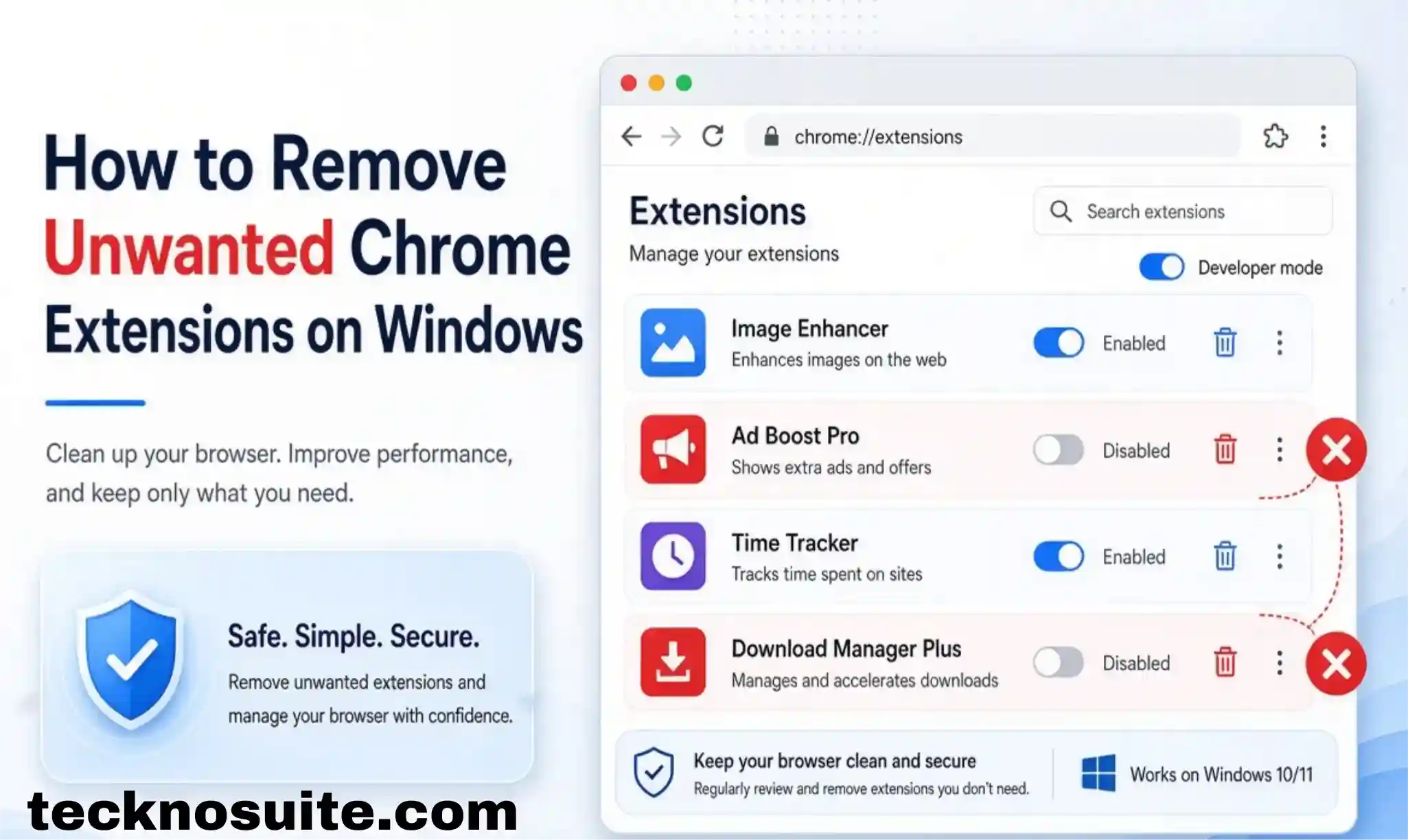
Chrome extensions can genuinely make your browser better — productivity tools, shopping helpers, security add-ons, writing assistants. But they pile up over time, and some quietly slow things down, mess with settings, throw unwanted notifications, or raise privacy concerns you didn’t sign up for.
Clearing out the ones you don’t need is quick. Here’s how to remove them, disable one temporarily, and what to do when Chrome won’t let one go.
Why Bother Removing Unused Extensions
An extension can slow Chrome down, eat extra system resources, throw notifications you don’t want, quietly change browser settings, collect browsing data, go unsupported over time, or conflict with other extensions. You don’t need to purge everything — but if you haven’t touched an extension in months, there’s little reason to keep it around.
How to Remove an Extension
- Open Chrome, and make sure you’re on the profile where the extension is actually installed.
- Click the Extensions icon (the puzzle piece) in the top-right corner.
- Find the extension in the list, or click Manage extensions for the full page if you’ve got a lot installed.
- Click Remove next to the one you want gone.
- Confirm when Chrome asks — click Remove again.
Another Way In: Chrome’s Settings Menu
- Open Chrome and click the three-dot menu (top-right).
- Select Extensions → Manage Extensions.
- Find the extension you want to delete.
- Click Remove and confirm.
Useful if you want to review everything installed at once before deciding what stays and what goes.
Disabling an Extension Instead of Deleting It
Not sure yet if an extension is causing a problem? Disable it instead of uninstalling.
- Open Chrome, click the three-dot menu.
- Go to Extensions → Manage Extensions.
- Find the extension and flip its toggle off.
It stays installed but goes inactive — handy for troubleshooting. If Chrome suddenly feels sluggish after installing something, disable it and see if performance improves before deciding whether to remove it for good.
Finding Extensions You Don’t Recognize
Spotting something you don’t remember installing isn’t automatically a red flag — it could’ve come bundled with another app, or been installed by someone who used the PC before you. Check its name, developer, description, requested permissions, install date, and whether you actually use it. If none of that rings a bell and you don’t need it, removing it is a reasonable call.
Checking Extension Permissions
Worth a look before keeping anything installed long-term. Extensions can request access to the sites you visit, page content, browsing activity, clipboard data, or downloads. Some of that’s legitimate — a password manager genuinely needs page access to autofill logins — but an unrelated extension asking for broad access is worth a second look.
When the Remove Button Doesn’t Work
Restart Chrome completely — close every window, reopen, and try removing it again.
Check if it’s managed — on a work or school computer, Chrome might be controlled by an organization’s policy that restricts what you can install or remove. If that’s the case, contact your admin rather than trying to work around it.
Think about recently installed software — some Windows installers sneak in extra browser components as part of their setup. Stick to trusted sources, and pay attention to optional installation steps you might normally click through.
When an Extension Keeps Coming Back
Try removing it again, restarting Windows, checking what you’ve recently installed, running a scan with trusted security software, checking Chrome’s settings for unexpected changes, and confirming Chrome itself is up to date. If it keeps returning after all that, it’s likely tied to unwanted software elsewhere on the PC, not just the extension itself.
Should You Remove Ones You Rarely Use?
Generally yes. A good habit: periodically go through your list and ask honestly whether you actually use each one. If not, remove it — you can always reinstall a legitimate one later if you need it again.
How Many Extensions Is Too Many?
No fixed number — what matters is installing only what you actually need and trust, not chasing a specific count. Password managers, writing tools, productivity add-ons, shopping helpers, accessibility tools, dev tools — quality and permissions matter far more than quantity.
Keeping Extensions Safe
Stick to the official Chrome Web Store rather than downloading extensions from random sites.
Check reviews — useful context, though not the only thing to go on.
Check the developer — look for a credible, established presence.
Actually read the permissions — make sure what’s requested makes sense for what the extension does.
Clear out what you don’t use — fewer third-party components running means less surface area for problems.
Keep Chrome updated — browser updates often carry real security and stability fixes.
FAQ
How do I completely remove an extension from Chrome?
Extensions → Manage Extensions, find it, click Remove, confirm.
Can I disable an extension instead of deleting it?
Yes — flip the toggle off on the Manage Extensions page. It stays installed but inactive.
Will removing an extension delete my browser data?
Usually just removes the extension itself, though some store settings or data separately — check the extension’s own documentation first if it holds important account info.
Can extensions slow down my computer?
Yes, especially with a lot installed or one doing something resource-intensive.
What if an extension keeps coming back?
Check recently installed software, see if Chrome’s managed by an organization, and run a security scan if it looks suspicious.
Are Chrome extensions generally safe?
Plenty of legitimate ones are — just stick to developers you trust and actually check permissions before installing.
Bottom Line
Clearing out unwanted Chrome extensions takes a couple of clicks — Manage Extensions, find it, Remove. If you’re troubleshooting a browser problem, try disabling first instead of jumping straight to uninstalling. Beyond that, just be a bit selective going forward: check permissions, check the developer, and clear out what you’re not actually using. A small set of trusted extensions beats a browser cluttered with tools you forgot you installed.