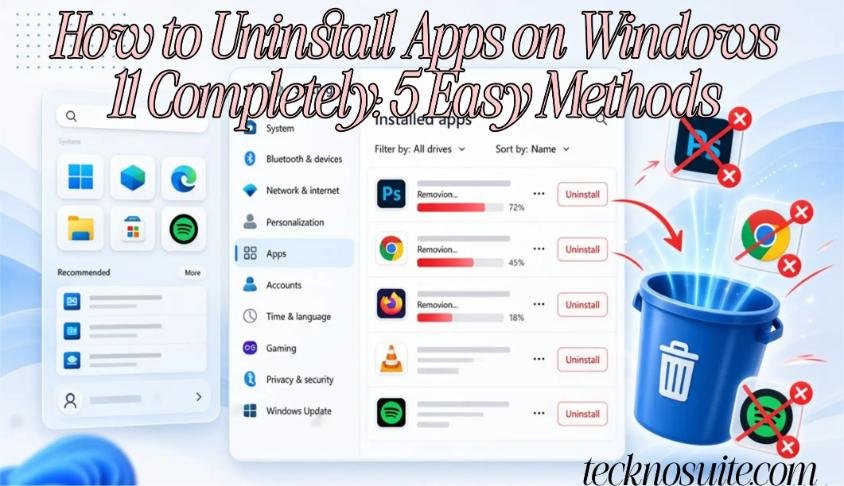
If your PC has accumulated apps you installed once and never opened again, clearing them out frees up storage and cuts down on clutter — and Windows 11 has enough built-in ways to do this that you rarely need a third-party uninstaller.
Here are 5 ways to remove apps properly, what to do when one refuses to go, and how to avoid accidentally breaking something your PC actually needs.
Why Bother Uninstalling Unused Apps
Clearing out software you don’t use frees up storage, cuts clutter, removes unwanted background activity, and makes it easier to find the apps you actually reach for. That said, don’t expect uninstalling one program to transform a slow PC — if performance is the real issue, it’s worth checking our guide on fixing a slow Windows 11 PC first to find the actual cause.
Method 1: Uninstall From Settings
The easiest route for most people.
- Press Windows + I to open Settings.
- Go to Apps → Installed apps.
- Scroll or search to find the app you want gone.
- Select the three-dot menu next to it and choose Uninstall.
Some apps remove themselves right away; others open their own uninstall wizard — just follow what’s on screen.
Method 2: Uninstall From the Start Menu
Quick option if you already know exactly what you want gone.
- Open Start → All apps.
- Find the app.
- Right-click it and select Uninstall.
Windows will either remove it directly or take you to the app’s own uninstaller.
Method 3: Use Control Panel for Older Desktop Programs
Some traditional desktop software still uses the classic Windows uninstall interface rather than the newer Settings app.
- Search for Control Panel and open it.
- Go to Programs → Programs and Features.
- Find the program in the list.
- Select it and choose Uninstall.
If a program isn’t showing up where you expected, Programs and Features is worth checking — older desktop apps don’t always behave like Microsoft Store apps.
Method 4: Use the App’s Own Uninstaller
Bigger desktop applications often ship with their own dedicated uninstall program, sometimes found in Start → All apps → [Application folder] or inside the app’s own installation directory. If the software has an official uninstaller, use it instead of manually deleting the app’s folder — it’s built to remove things properly.
Method 5: Remove Microsoft Store Apps
Same process as Method 1: Settings → Apps → Installed apps, find the app, three-dot menu → Uninstall, and follow whatever prompts appear.
When an App Refuses to Uninstall
Restart your PC and try again — a running process may have been blocking the uninstall.
Make sure the app is actually closed, including any lingering background process near the system clock.
Try Control Panel if Settings didn’t work — Programs and Features sometimes succeeds where the newer interface doesn’t.
Check the developer’s own instructions — this matters especially for security software, VPNs, drivers, or other system-level tools, which sometimes need a specialized removal tool rather than a standard uninstall.
Should You Just Delete the App’s Folder?
No — not as a first move. Deleting a folder doesn’t properly uninstall most software. It can leave behind registry entries, services, scheduled tasks, and other components — and worse, deleting the wrong folder can cause real problems. Stick with the app’s official uninstaller or Windows’ built-in options.
What About Leftover Files?
Some residue after uninstalling is normal — settings, logs, shared components, cached data. Not all of it needs cleaning up. If storage recovery is your actual goal, check Settings → System → Storage for temp files and other categories rather than manually deleting folders that look related to the app you just removed — you might be wrong about what they’re for.
Finding Which Apps Take Up the Most Space
Go to Settings → System → Storage → Installed apps to see reported sizes for everything installed. Games and creative software tend to be the biggest offenders, so clearing out ones you don’t use anymore can free up meaningful space. For more on this, see our guides on freeing up storage space and finding large files.
Apps You Shouldn’t Touch
Be cautious with anything tied to hardware functionality, graphics drivers, audio, touchpads, networking, printers, security, or Windows components themselves — and with software that other apps depend on. If you don’t recognize something, the better instinct isn’t “delete it,” it’s “figure out what it actually does first.”
Does Uninstalling Apps Speed Up Windows 11?
Sometimes, but the effect varies. It can free storage, cut clutter, remove unwanted background services, and stop some apps from auto-launching — but removing one small app usually won’t make a dramatic difference on its own.
If your PC’s genuinely slow, it’s worth also checking startup apps, RAM and CPU usage, available storage, background processes, and pending Windows updates. See our guide on stopping apps from running at startup for more on that angle.
Stopping an App From Auto-Launching Without Uninstalling It
If you still use an app but don’t want it opening automatically, you don’t have to remove it — just go to Settings → Apps → Startup and switch it off there. It stays installed, just stops launching at sign-in.
Common Mistakes
- Deleting the app’s folder directly — doesn’t properly uninstall most programs.
- Removing unfamiliar Windows components — risks breaking system functionality.
- Using random registry cleaners — bad registry edits can cause real problems.
- Installing unnecessary third-party uninstallers — Windows already covers this.
- Skipping an app’s own uninstaller — some software genuinely needs its own process to remove everything correctly.
FAQ
How do I uninstall an app on Windows 11?
Settings → Apps → Installed apps, find it, three-dot menu → Uninstall.
Why won’t a program uninstall?
It might still be running, have a damaged uninstaller, or need a specialized removal process. Try restarting, closing the app, and checking Control Panel → Programs and Features.
Can I uninstall from the Start menu?
Yes — right-click most apps under Start → All apps and select Uninstall.
Does uninstalling delete everything related to an app?
Not always — some settings, caches, or logs can be left behind.
Should I delete leftover folders?
Only if you’re sure the folder belongs to the app you removed and nothing else uses it. When in doubt, leave it.
Can uninstalling apps improve performance?
It can help if the app was eating storage or running background processes — but it depends on the app and the PC.
What if a program isn’t listed in Settings?
Try Control Panel → Programs and Features, or check the developer’s own uninstall instructions.
Bottom Line
Start with Settings → Apps → Installed apps → Uninstall — it covers most cases. If that doesn’t work, try Control Panel → Programs and Features or the app’s own uninstaller. Avoid deleting program folders or unfamiliar Windows files directly; a proper uninstall is safer and avoids leftover junk causing problems later. If storage is the real motivation, pair this with a look at your Storage settings and any large files worth clearing out too.
Related: How to Fix Windows 11 Running Slow, How to Free Up Storage Space on Windows 11, How to Find Large Files Taking Up Space on Windows 11, How to Stop Apps From Running at Startup in Windows 11, How to Clear Cache in Windows 11