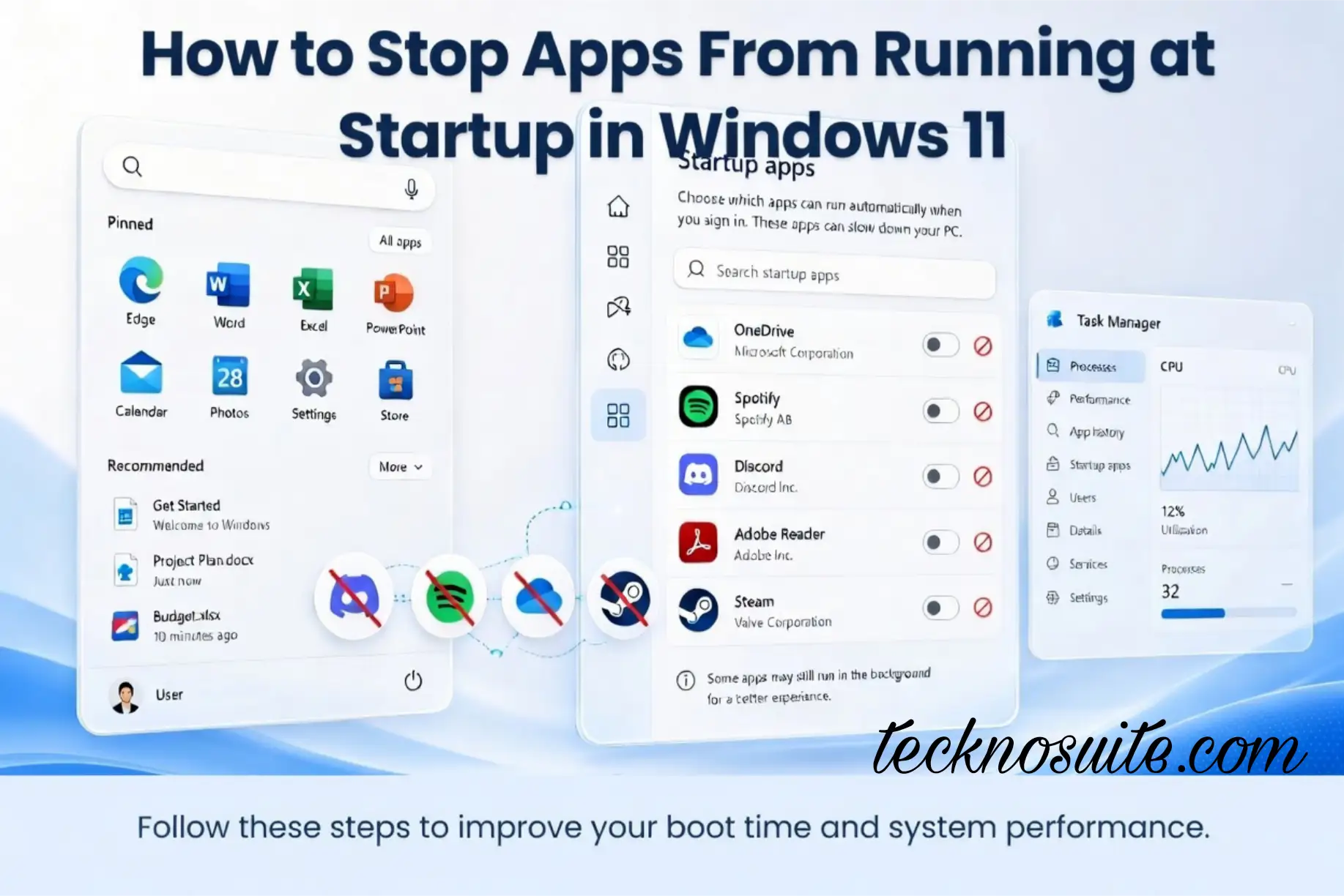
If your PC feels sluggish for the first minute or two after you sign in, startup apps are usually the reason. Some of them are worth keeping — a cloud sync tool, for instance — but a lot of what launches automatically doesn’t need to.
Here’s how to see what’s starting with Windows and turn off the stuff you don’t actually need running the second you log in.
What Counts as a Startup App
These are programs Windows automatically opens when you sign in — things like messaging apps, cloud storage tools, game launchers, music apps, Microsoft 365 add-ons, hardware utilities, and security software.
Some of these earn their spot. You probably want a cloud-storage app syncing in the background without having to open it manually every time. Others — a game launcher you open twice a month, say — don’t need to be part of every login.
Method 1: Turn Off Startup Apps From Settings
- Press Windows + I to open Settings.
- Go to Apps → Startup.
- You’ll see a list of apps with a toggle next to each.
- Flip the toggle to Off for anything you don’t need launching automatically.
You can repeat this for as many apps as you want — nothing here is permanent or risky.
What “Startup Impact” Means
Windows labels each app High, Medium, Low, or Not measured impact — a rough sense of how much it slows down your startup. But high impact doesn’t automatically mean “disable this.” Some high-impact apps are still ones you actually want running.
Method 2: Use Task Manager Instead
Task Manager gives you a bit more detail than Settings.
- Right-click the Start button and choose Task Manager (or press Ctrl + Shift + Esc).
- Select Startup apps from the sidebar.
- Check the impact rating next to each app.
- Right-click any app you want to stop and select Disable.
The app doesn’t get removed — you can still open it manually whenever you need it.
Settings or Task Manager — Which One?
Settings is faster if you just want to flip a few toggles. Task Manager gives you more context if you’re trying to actually figure out what’s slowing your startup down. For most people, starting with Settings → Apps → Startup is enough.
Which Apps Are Usually Safe to Disable
There’s no fixed list — it depends on what you actually use. But good candidates are usually things you only open occasionally: game launchers, music apps, chat apps you don’t need the second you log in, meeting software, software updaters, manufacturer utilities.
Ask yourself: do I need this running the moment I sign in? If not, it’s a reasonable one to disable — you can always launch it by hand later.
What to Be Careful About Disabling
Don’t turn off something just because the name is unfamiliar. Be cautious with:
- Antivirus and security software
- Hardware utilities (touchpad, keyboard, graphics, audio)
- Backup or sync tools you actually rely on
If you’re not sure what something does, look it up before disabling it. It’s also worth changing one or two things at a time — that way, if something breaks, you know exactly what caused it.
Does Disabling Startup Delete the App?
No. It only stops Windows from launching it automatically at sign-in. The app stays installed, and you can open it any time from Start → All apps.
Turning a Startup App Back On
Changed your mind? Go back to Settings → Apps → Startup and flip the toggle back on, or open Task Manager → Startup apps, right-click the app, and choose Enable.
If an App Isn’t in the Startup List
Not every program hooks into Windows’ startup settings the same way. Check the app’s own settings for something like “Start with Windows,” “Launch at startup,” or “Run when Windows starts,” and toggle that off directly.
Beyond Startup Apps: Other Ways to Speed Things Up
Disabling startup apps helps, but it’s not the whole picture:
- Keep Windows updated — install updates as they come.
- Uninstall apps you don’t use via Settings → Apps → Installed apps.
- Watch your free storage — a nearly full drive slows down general maintenance. If storage’s the real issue, see our guides on freeing up storage space and finding large files.
- Restart occasionally — clears out lingering system state from long uptime.
Common Mistakes
- Disabling everything — you don’t need to nuke the whole list; some apps genuinely earn their spot.
- Disabling security software — don’t do this without understanding what you’re giving up.
- Disabling something you depend on — if a backup or sync tool needs to run automatically, turning it off breaks that.
- Expecting a huge speed boost — this helps, but it won’t turn an old machine into a new one. If your PC’s still slow afterward, the real bottleneck might be storage, RAM, or something else entirely.
FAQ
How do I stop apps from opening automatically in Windows 11?
Go to Settings → Apps → Startup and toggle off what you don’t need — or use Task Manager → Startup apps and select Disable.
Does disabling startup apps make Windows 11 faster?
It can, since fewer programs launch at sign-in — how much depends on how many you had running and how heavy they were.
Can I disable Microsoft apps from startup?
Some, yes — but don’t assume something’s safe to disable just because it has “Microsoft” in the name. Check what it actually does first.
What does “High impact” mean for startup apps?
It’s a measure of how much an app slows down your startup — not an automatic verdict that you should disable it.
Will disabling startup apps delete them?
No, they stay installed. You can still open them manually anytime.
What if a program isn’t listed under Startup Apps?
Check its own settings for an option like “Start with Windows” or “Launch at startup.”
Bottom Line
Head to Settings → Apps → Startup, review what’s launching automatically, and turn off anything you don’t need the instant you sign in. Use Task Manager → Startup apps if you want more detail. The goal isn’t zero startup apps — it’s cutting the ones that don’t need to be there while keeping security and backup tools running. And if your PC’s still sluggish after that, it’s worth checking your storage next.
Related: How to Free Up Storage Space on Windows 11How to Free Up Storage Space on Windows 11, How to Find Large Files Taking Up Space on Windows 11