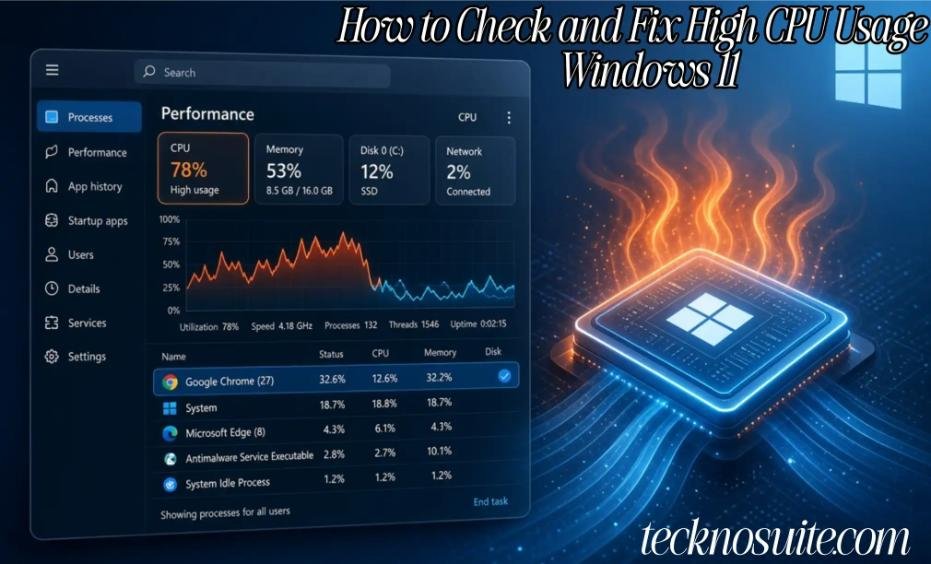
If your PC’s running slow, getting hot, or the fan won’t stop, high CPU usage is a likely suspect. The CPU handles instructions from Windows and everything you run — when something’s leaning on it hard, the whole system can feel sluggish.
But here’s the thing: high CPU usage isn’t automatically a problem. Rendering a video, running a game, or installing something can legitimately spike your processor to 100% — that’s expected. What actually matters is figuring out what’s using it and why.
What CPU Usage Actually Means
It’s a measure of how much of your processor’s capacity is in use at any moment — low usage means your PC’s mostly idle, moderate means a few things are running, high means something demanding is at work, and 100% means the processor’s fully occupied right then.
Seeing 100% isn’t inherently bad — it happens naturally while rendering video, installing software, gaming, compressing files, editing photos, or during certain Windows maintenance. What’s worth investigating is CPU staying high while you’re doing basically nothing.
1. Check Usage in Task Manager
Press Ctrl + Shift + Esc to open Task Manager, then go to Processes and look at the CPU column. If one app is consistently sitting near the top, that’s worth a closer look — but don’t kill it right away. Figure out what it actually does first.
2. Check the Performance Tab for the Bigger Picture
Task Manager → Performance → CPU gives you overall utilization, speed, processor model, core count, logical processors, uptime, and more — a good way to gauge whether the processor is genuinely under heavy load right now.
3. Find What’s Actually Using the CPU
Back in Task Manager → Processes, sort by the CPU column. You might find the culprit is a browser, a video editor, a game, an installer, a sync tool, an antivirus scan, or some other background program. Once you know which app it is, you can deal with that specifically instead of tweaking Windows settings blindly.
4. Close What You Don’t Need
If a normal app is eating CPU and you’re done using it, just close it — video editors, game launchers, media apps, dev tools, meeting software, or a heavy browser tab all count. That said, don’t force-close unfamiliar Windows processes just because they’re near the top of the list — some are essential to how Windows runs.
5. Restart Your PC
One of the simplest fixes for unexplained CPU spikes. Start → Power → Restart clears the current session entirely. If usage goes back to normal but climbs again later, pay attention to what you open right before it happens — that’s usually the clue.
6. Check Your Startup Apps
Programs that launch at sign-in can keep running in the background and eating CPU. Check Settings → Apps → Startup and turn off anything you don’t need right away, or look at Task Manager → Startup apps for more detail. Keep security software, hardware utilities, backup tools, and sync services running though — those earn their spot. Full guide: stopping apps from running at startup.
7. Check for Windows Update Activity
Windows can legitimately use extra CPU while downloading or installing updates. Check Settings → Windows Update to see if that’s happening — if so, just give it time to finish rather than assuming there’s a deeper problem. Restart afterward if Windows asks, then recheck usage.
8. Scan for Malware
Unexplained high CPU paired with unknown programs, weird pop-ups, browser changes, or unusual network activity is worth a security scan. Open Windows Security from the Start menu, go to Virus & threat protection, and run a scan — follow whatever it recommends if something turns up.
9. Check Your Browser
Sites with video, animations, interactive tools, or games can push your CPU hard. If your browser’s the culprit: close tabs you’re not using, pause any videos, disable extensions you don’t need, restart the browser, and update it. If CPU drops the moment you close a specific tab, you’ve found your problem site.
10. Review Browser Extensions
Some extensions are poorly optimized and quietly eat resources. Go through what’s installed and remove what you don’t use — if you’re troubleshooting, disabling extensions temporarily and watching CPU usage is a quick way to isolate the cause. Only install extensions you actually trust.
11. Update the App Causing the Problem
If one program is a repeat offender, check for an update — developers often ship fixes for exactly this kind of thing. Use the app’s own update mechanism, or check the Microsoft Store for anything installed through there.
12. Check Background Processes
Cloud sync, file indexing, backups, security scans, and media sync can all spike CPU temporarily. If the spike happens around the same time each day, look for a scheduled task that lines up. Don’t disable services just to force the number down — a background task might be doing something you actually want.
13. Check for Overheating
High CPU generates extra heat. If your PC’s running hot and the fan won’t quiet down, check whether cooling is actually working — dust buildup, blocked vents, poor airflow, or high ambient temperature can all contribute. Laptops especially need clear vents; use them on a hard, flat surface when you can. Don’t open up cooling hardware unless you know what you’re doing and understand the warranty implications.
14. CPU Usage vs. CPU Speed
These are related but different — usage tells you how busy the processor is, speed tells you how fast it’s currently running. Modern CPUs dynamically adjust speed based on workload, temperature, and power settings, so seeing speed below the advertised max isn’t automatically a problem.
15. When 100% CPU Is Totally Normal
Rendering video, exporting a project, installing something large, gaming, compressing files, or running a benchmark can all legitimately max out your CPU. If it drops back to normal once the task finishes, there’s nothing to worry about.
16. When High CPU Usage Actually Signals a Problem
Worth paying attention to when your PC is idle but usage stays high, the same unknown process keeps eating CPU, apps keep freezing up, the machine’s running unusually hot, fans run constantly during light tasks, usage jumped after installing something specific, or you’re seeing other suspicious behavior. In these cases, track down the responsible process before making bigger changes.
17. Check Whether It’s Actually a Hardware Limit
Sometimes it’s not a software issue at all — your CPU might just be reaching its actual limits, especially an older one running something demanding. Check Settings → System → About or Task Manager → Performance → CPU for your processor details. If you’re regularly pushing your CPU near its ceiling, a hardware upgrade might eventually be the real answer — see our guide on checking your PC’s specs for more.
What About CPU Optimizer Apps?
Generally unnecessary — Windows already handles processor scheduling and resource management on its own. Be wary of apps promising dramatic gains through a one-click “optimization” — some make unneeded changes or push you to disable Windows services you actually need. Figure out the real cause of high CPU before reaching for one of these.
Common Mistakes
- Ending random processes — don’t kill something unfamiliar just because it’s using CPU.
- Chasing 0% usage — some CPU activity is normal and expected; that’s what it’s there for.
- Disabling Windows services blindly — can break features you rely on.
- Stacking multiple optimizer apps — more of them doesn’t mean better performance.
- Ignoring the heat angle — if high CPU comes with loud fans or excessive warmth, check cooling and airflow too.
FAQ
How do I check CPU usage in Windows 11?
Ctrl + Shift + Esc for Task Manager, then Processes — the CPU column shows what each process is using.
Why is my CPU at 100%?
Could be a demanding app, a Windows task, an update, a browser tab, a background process, or malware. Task Manager will point you to the culprit.
Is 100% CPU usage bad?
Not necessarily — temporary spikes during heavy tasks are normal. Consistently high usage during light tasks is what’s worth investigating.
How do I reduce CPU usage?
Identify what’s using it first, then close unnecessary apps, review startup programs, update problematic software, check for malware, and restart.
Does restarting reduce CPU usage?
Yes, if a software process was the cause — a restart clears it out.
Can malware cause high CPU usage?
Yes — if you’re seeing other suspicious behavior alongside it, run a Windows Security scan.
Should I use a CPU optimizer?
Most people don’t need one — Windows already manages this automatically.
Bottom Line
High CPU usage isn’t automatically a sign of trouble. Start by identifying what’s actually using the processor: Task Manager → Processes, sorted by CPU. If it’s a demanding app doing demanding work, that’s just normal. If it’s an unfamiliar process eating CPU while your PC sits idle, that’s worth chasing down. Work through the basics — close unnecessary apps, review startup programs, check Windows Update, scan for malware, update problematic software, check cooling — and if your processor’s simply hitting its limits during normal use, that’s a sign it might be time to think about hardware.
Related: How to Fix Windows 11 Running Slow, How to Free Up RAM on Windows 11, How to Check Your PC’s RAM, CPU, and Storage in Windows 11, How to Stop Apps From Running at Startup in Windows 11, How to Uninstall Apps on Windows 11, How to Clear Cache in Windows 11